
Before you start
- It’s per gallery. Turn it on for the events where it matters, such as a corporate party or a school event. It’s off unless you turn it on.
- Nothing already showing changes. Turning it on only affects new uploads.
- Your own uploads don’t wait. Photos you add in Studio stay private until you publish them, as always.
- Guests are told. After uploading, they see that their photos will appear once the host has checked them.
Set it up
Turn on Approve before showing
In Studio, open the gallery and go to Settings. In Guest uploads, switch on Approve before showing and choose Save.
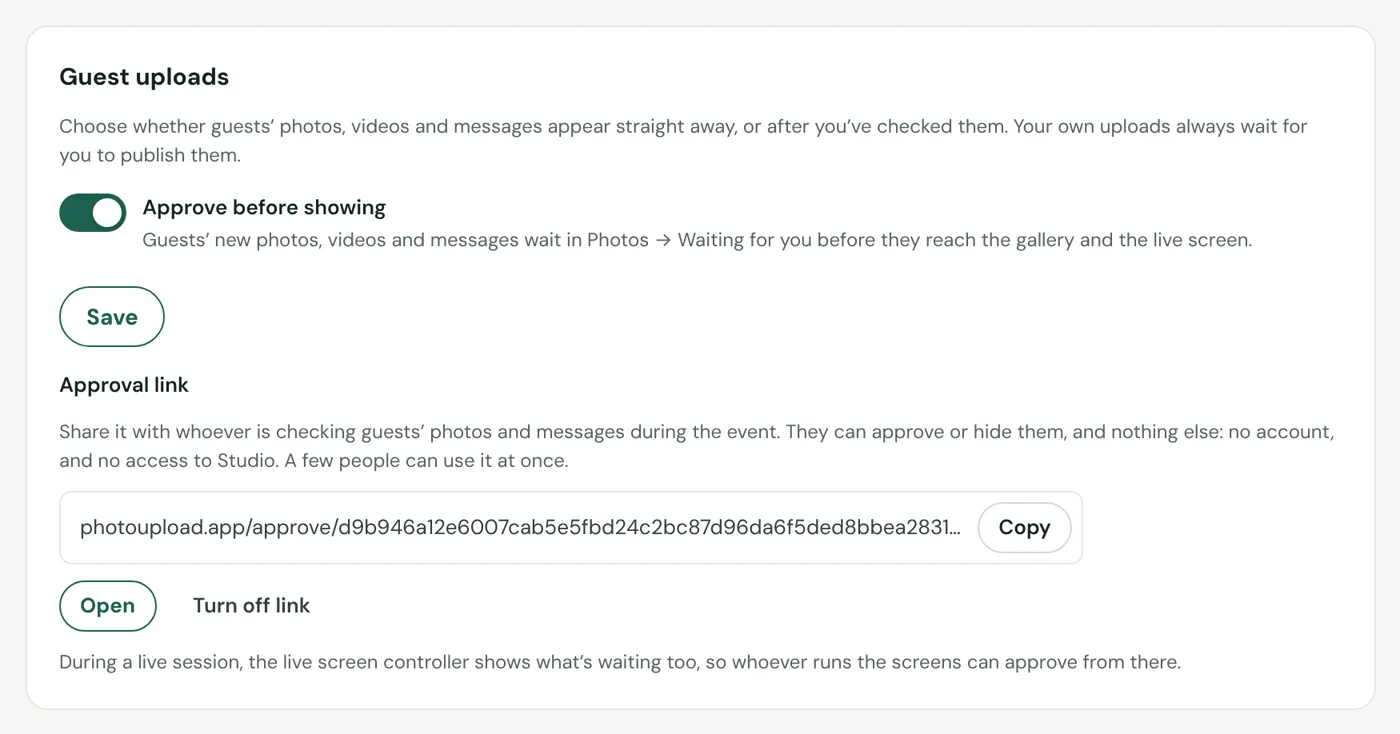
Studio → gallery → Settings → Guest uploads. With Approve before showing on, the Approval link appears underneath. Share the approval link if someone else is checking
Under the switch, choose Create approval link, then Copy and send it to whoever is checking photos during the event: a venue coordinator, a planner or a friend. They don’t need an account and can’t see anything else in Studio. A few people can use the same link at once, and you can turn it off at any time.
Check what’s waiting
See when something is waiting
Your Galleries list shows “waiting for you” on the gallery, its Overview shows a banner, and the Photos tab has a count. Photos, videos and messages are counted together.
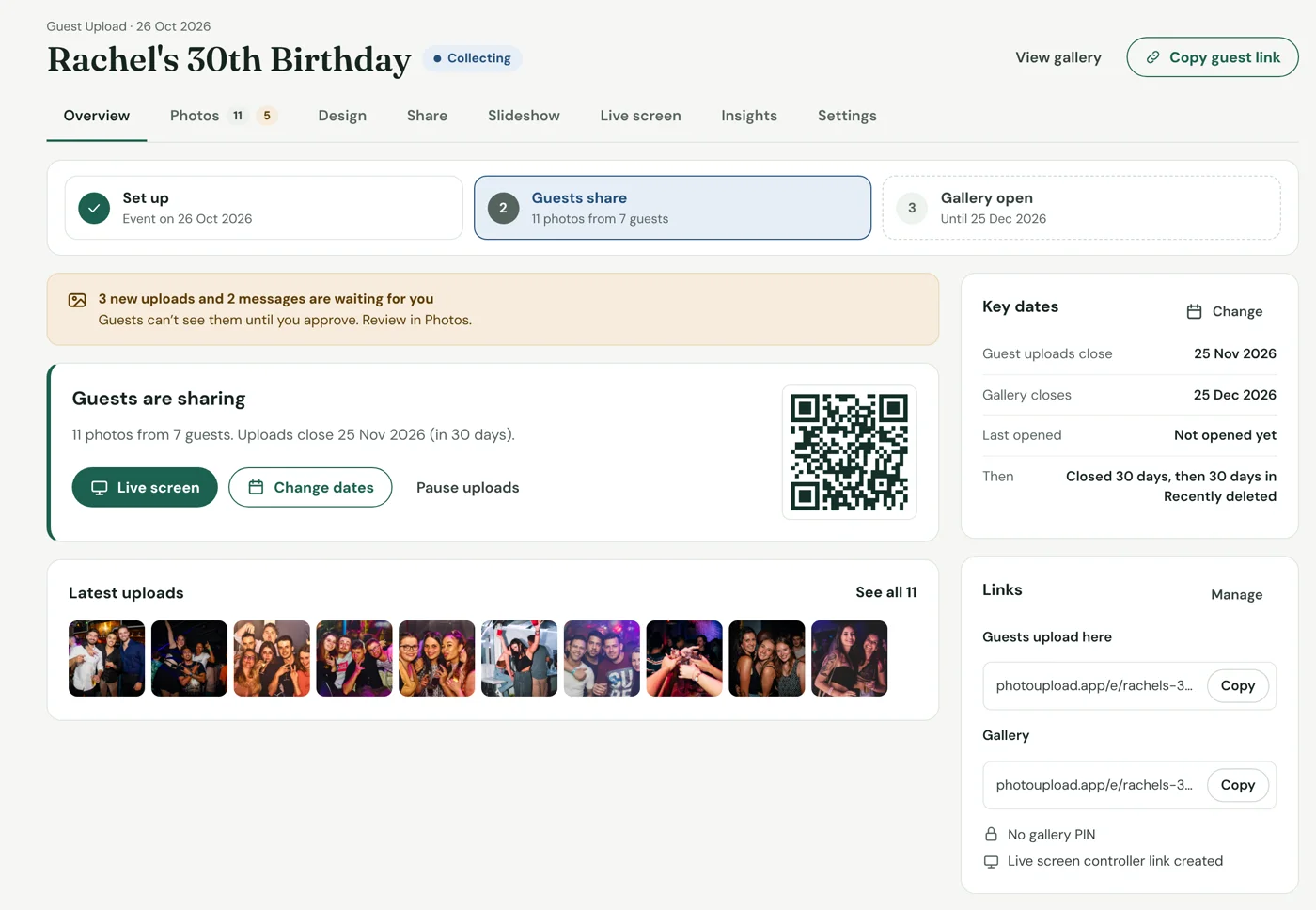
The gallery’s Overview: a banner says how many uploads and messages are waiting, and the Photos tab shows the count. Approve, approve without caption, or hide
In the Photos tab, Waiting for you lists each photo, video and written message with who shared it, newest first. Messages are in the same list, so there’s only one place to check.
- Approve adds it to the gallery and the live screen straight away.
- Approve without caption shows the photo but removes the guest’s caption, handy when the photo is fine but the words aren’t.
- Hide keeps the file but never shows it. It moves to Hidden, where you can approve it later or delete it.
- Approve all shows everything waiting, photos and messages, in one go.
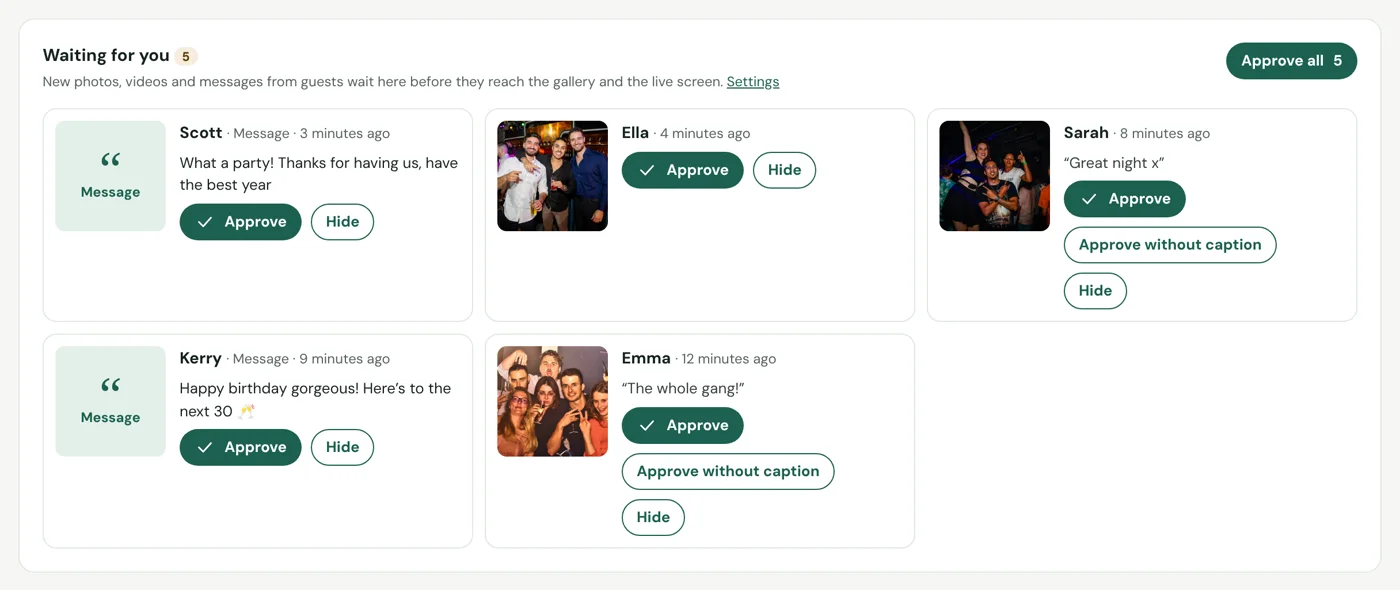
Studio → gallery → Photos → Waiting for you, with photos and messages together. Tap a picture to open it full size.
On the day, from a phone
Using the approval link
The person you sent the link to sees the photos waiting, with new arrivals added by themselves every few seconds, and guests’ messages underneath. They tap a picture to see it full size, then choose Approve, Without caption or Hide. If two people tap the same photo, the second is told it’s already been dealt with. When lots arrive at once, Approve all approves everything on their screen in one go; anything that arrives at that moment still waits.
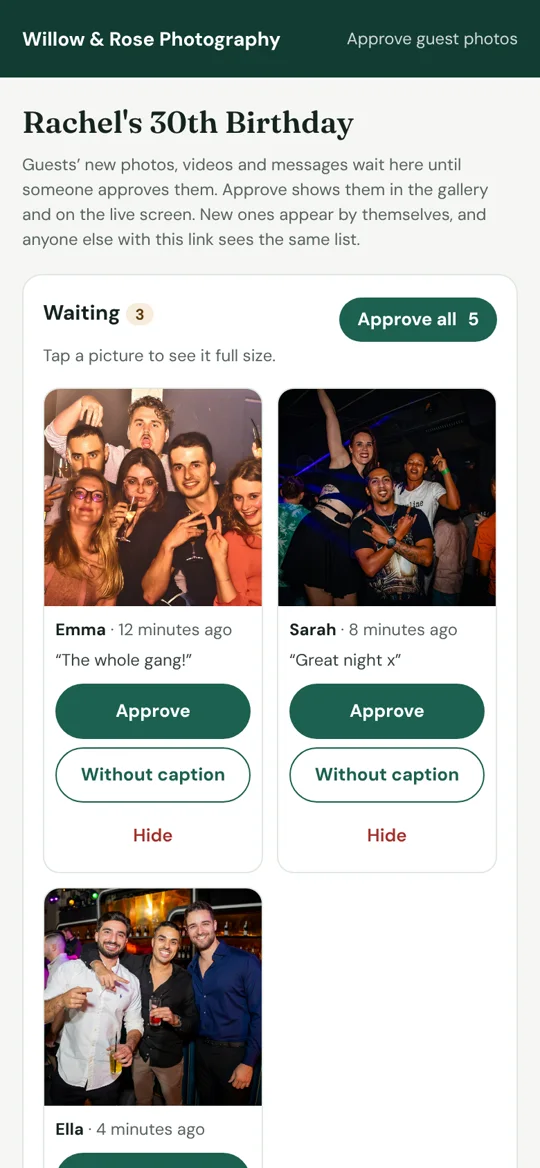
The approval link on a phone: no account needed. Approving from the live screen controller
If the event has a live screen, whoever runs it can approve from the controller too. While Approve before showing is on, the controller shows Waiting for approval instead of the photos to hide, with messages underneath, so approved photos and messages go straight onto the screens. Approve all is there too. If something is approved by mistake, open Already on the screens underneath and choose Hide.
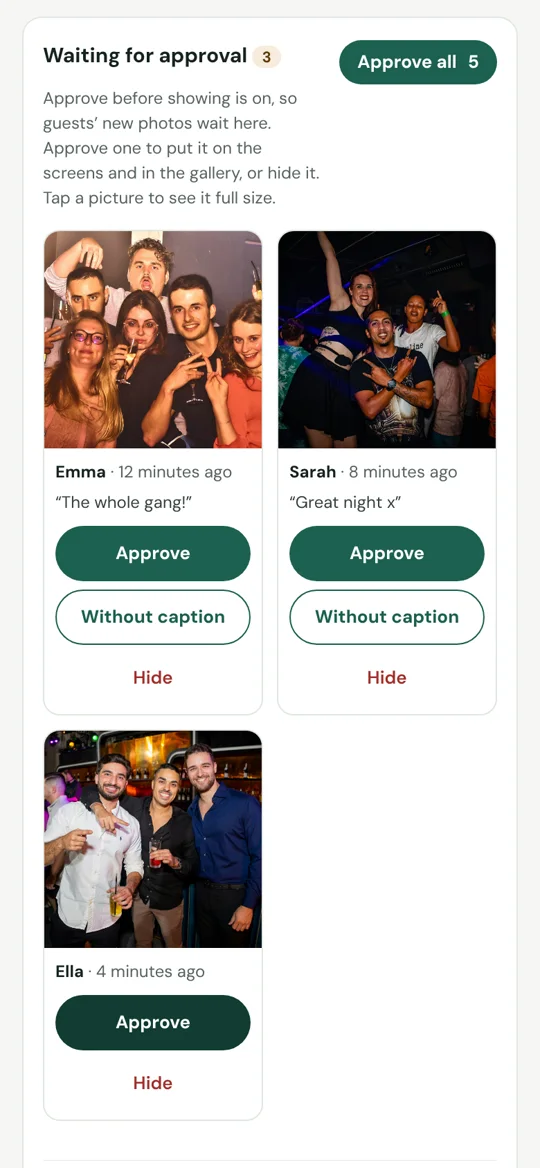
The live screen controller during a live session, with photos waiting for approval.
Turning it off later? Switch off Approve before showing and choose whether anything still waiting is shown straight away or stays waiting for you to check.
Good to know
- Waiting and hidden files count towards your storage until you delete them.
- Nothing waiting is visible to guests: not in the gallery, the slideshow, the live screen or downloads.
- Guests can still remove their own upload while it waits.
- The approval link can’t delete anything. Deleting stays with you in Studio.
- Approve all only approves what’s on the screen. On the approval link and the controller, it never approves something that arrived after the page last updated, or something another person has just hidden.