
Make your poster
Open your gallery’s Share tab and choose Create QR poster.
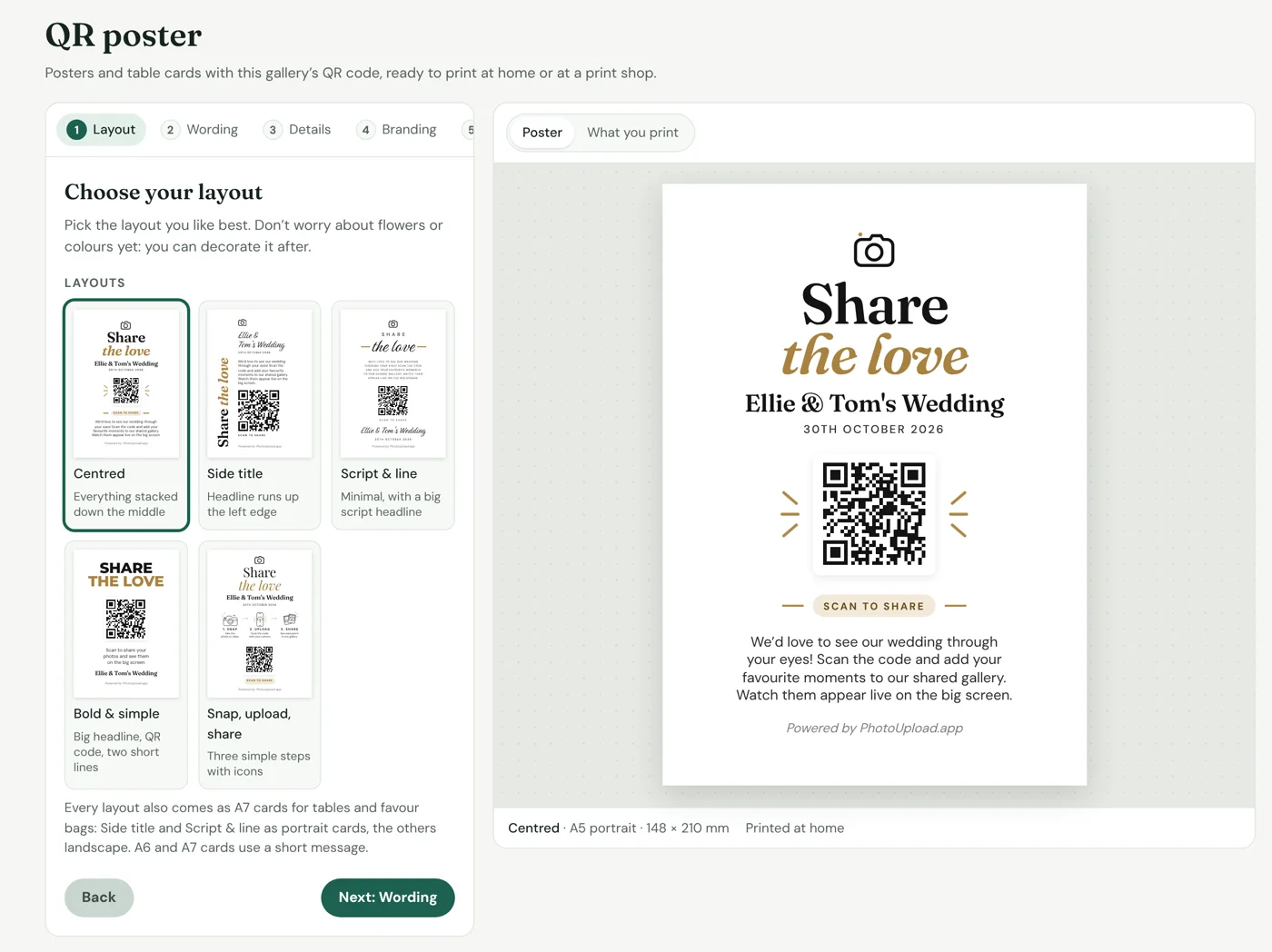
Pick a layout. You can decorate it afterwards.
Choose the wording. It’s written for your type of event, or you can write your own.
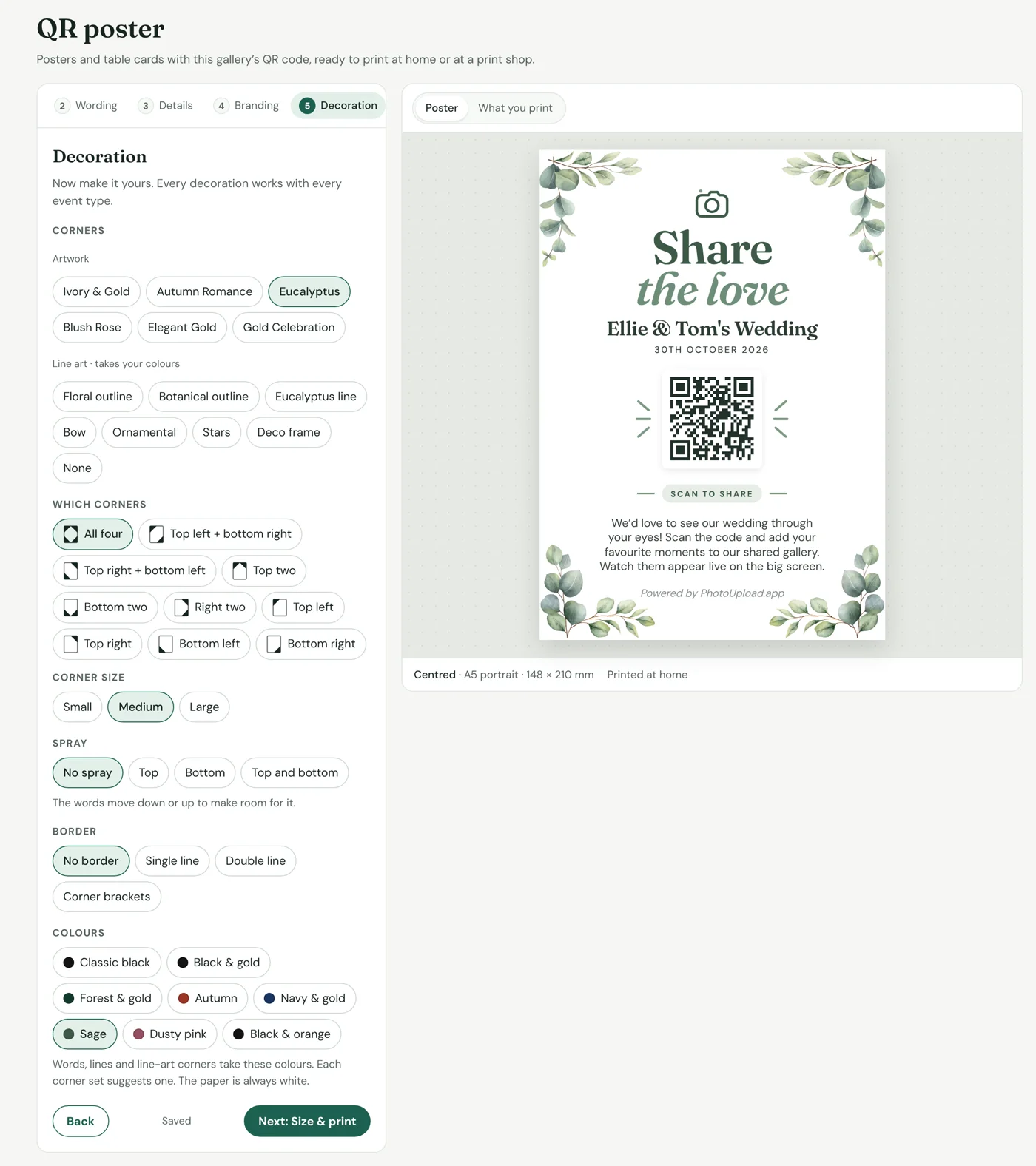
Check the name and date, then add artwork and colours.
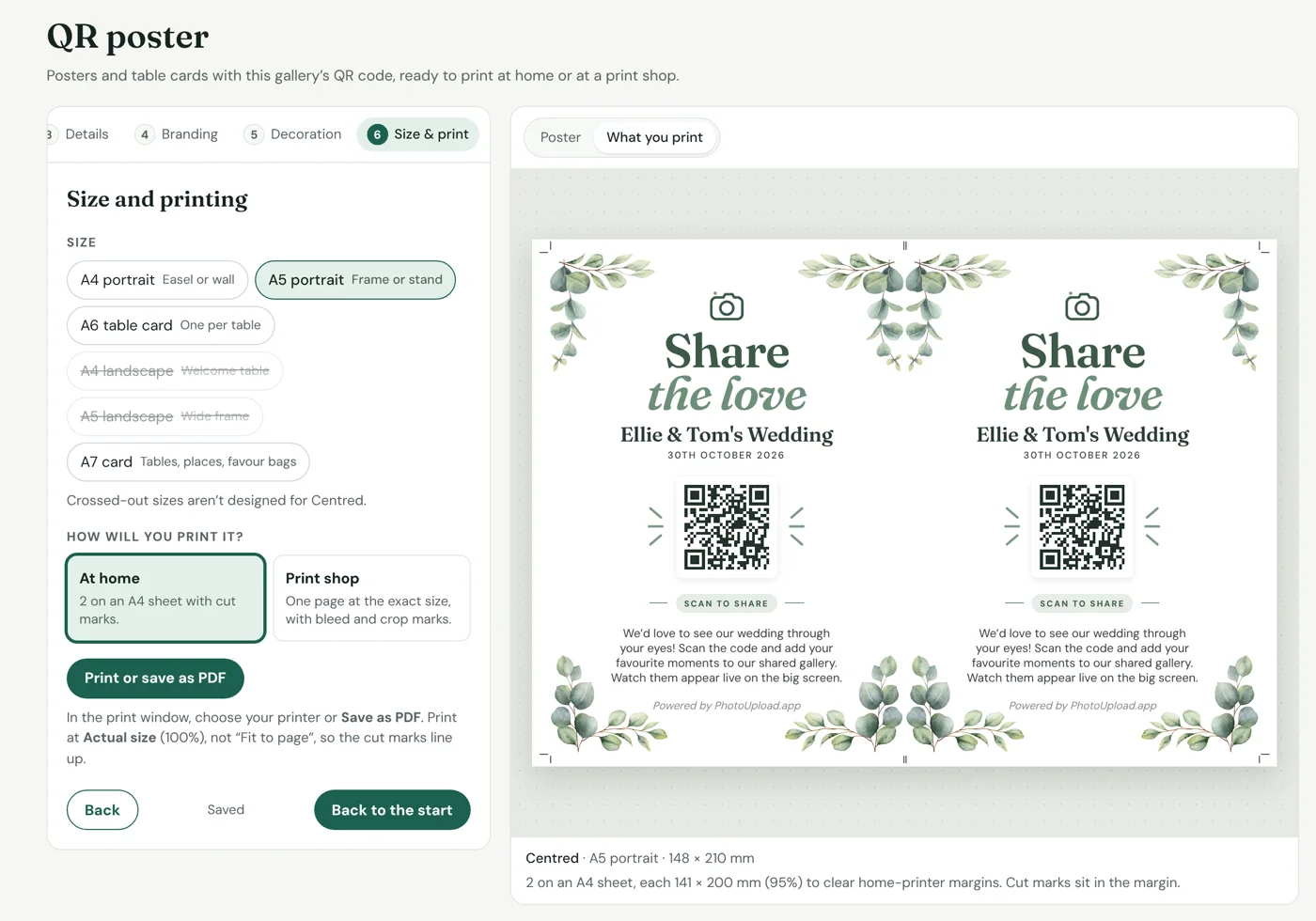
Choose a size: A4 or A5 posters, A6 table cards or A7 cards.
Your choices are saved, so you can come back for another size.
Print it
- At home: choose Printed at home. Everything is laid out on A4 sheets with cut marks. Print at Actual size (100%), not “Fit to page”.
- At a print shop: choose For a print shop, then Save as PDF in the print window. You get the exact size with 3 mm bleed and crop marks, ready to send.
Our guidance
- Matt or silk card (250 to 350 gsm) works well. Glossy paper can reflect light and make the code harder to scan.
- Print one first and scan it from where guests will stand.
- Put it at eye level in good light, where guests naturally pause: tables, the bar, the guest book.
Use your own design
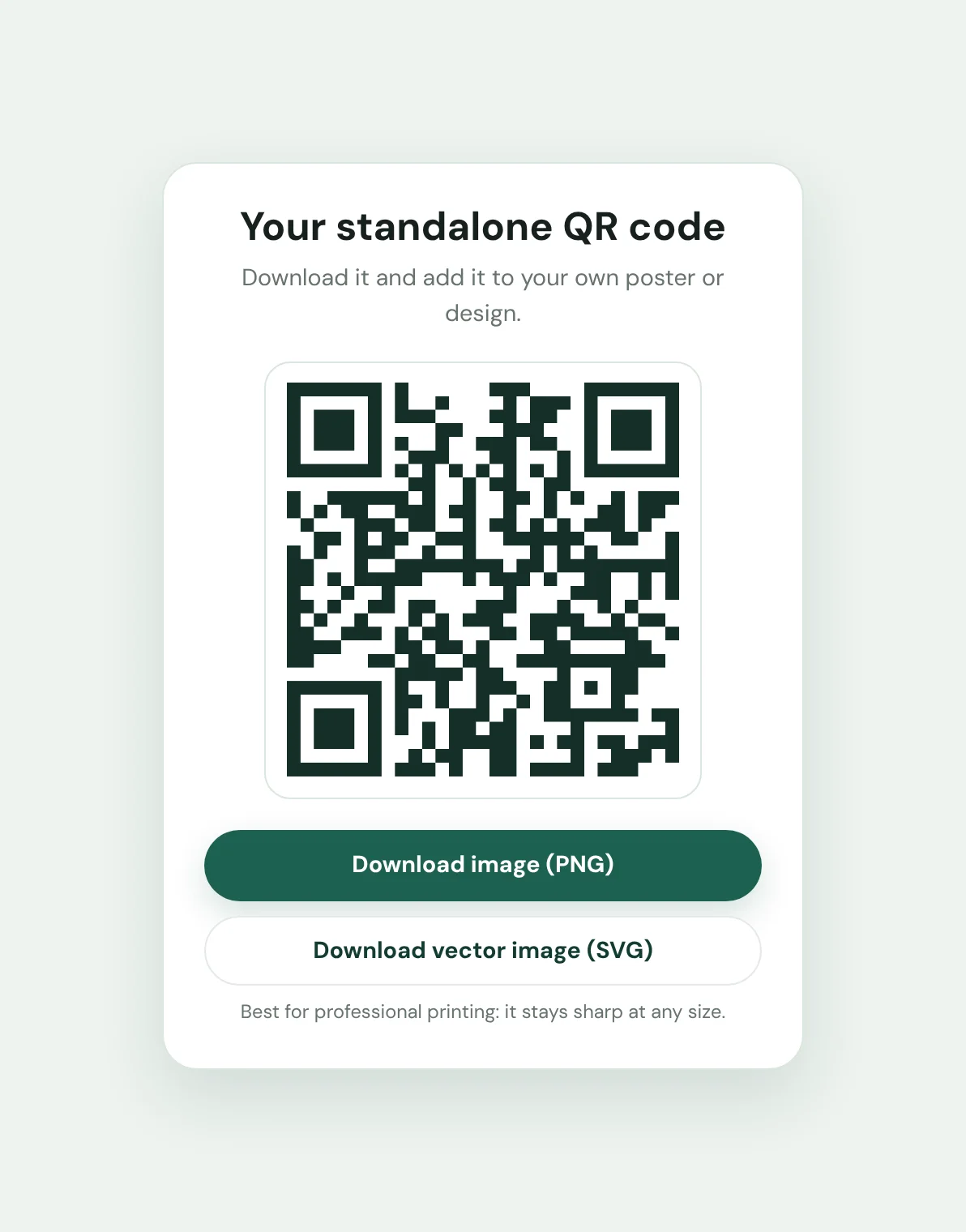
Don’t want to use one of our designs? On the Share tab, choose Download QR. Choose Download image (PNG) for printing at home and screens, or Download vector image (SVG) for professional printing: it stays sharp at any size. It’s the same link as on our posters.
Our guidance
- Keep a white margin round the code and don’t stretch it.
- Keep it dark on a light background.
- Make it at least 3 cm wide on table cards, and bigger on posters seen from further away. As a rough guide, allow 1 cm of code for every 10 cm guests stand back.
- Scan a test print before printing them all.
Business galleries
Posters carry your brand’s logo or business name. A small “Powered by PhotoUpload.app” credit line is added to the bottom, which can be removed or replaced with your own website address when you connect a custom domain for the full white-label experience.