
What proofing is
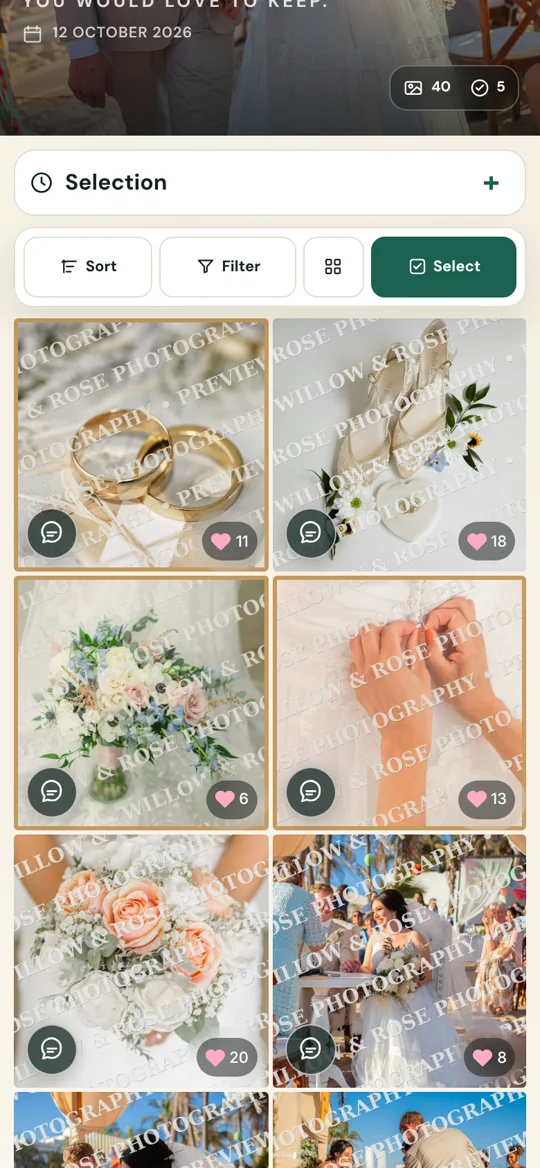
Instead of emailing attachments or asking for file numbers, you share one private Client Gallery. Your client browses watermarked previews, picks the ones they want and confirms their choice. You decide how many they can pick and by when.
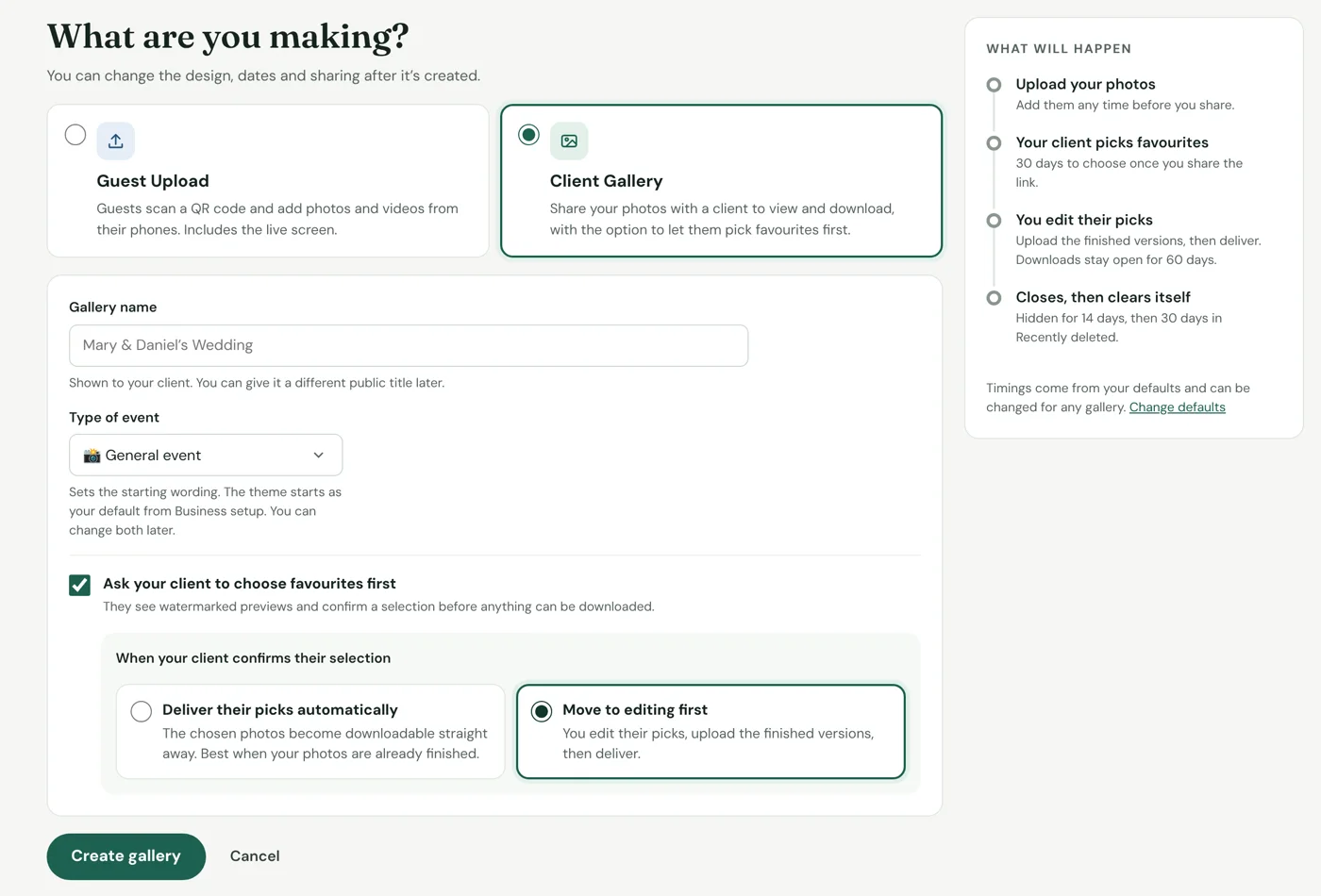
Turn it on when you create the gallery with Ask your client to choose favourites first. If your client just needs every finished photo, leave it off and the gallery is a straightforward delivery.
Two ways to finish
Best when your photos are already edited. The moment your client confirms, their picks become downloadable.
Best when you’d rather edit only what they choose. You edit their picks, upload the finished versions and deliver.
You can change this until your client confirms. Then it locks, so proofs can never be delivered by mistake.
What your client sees
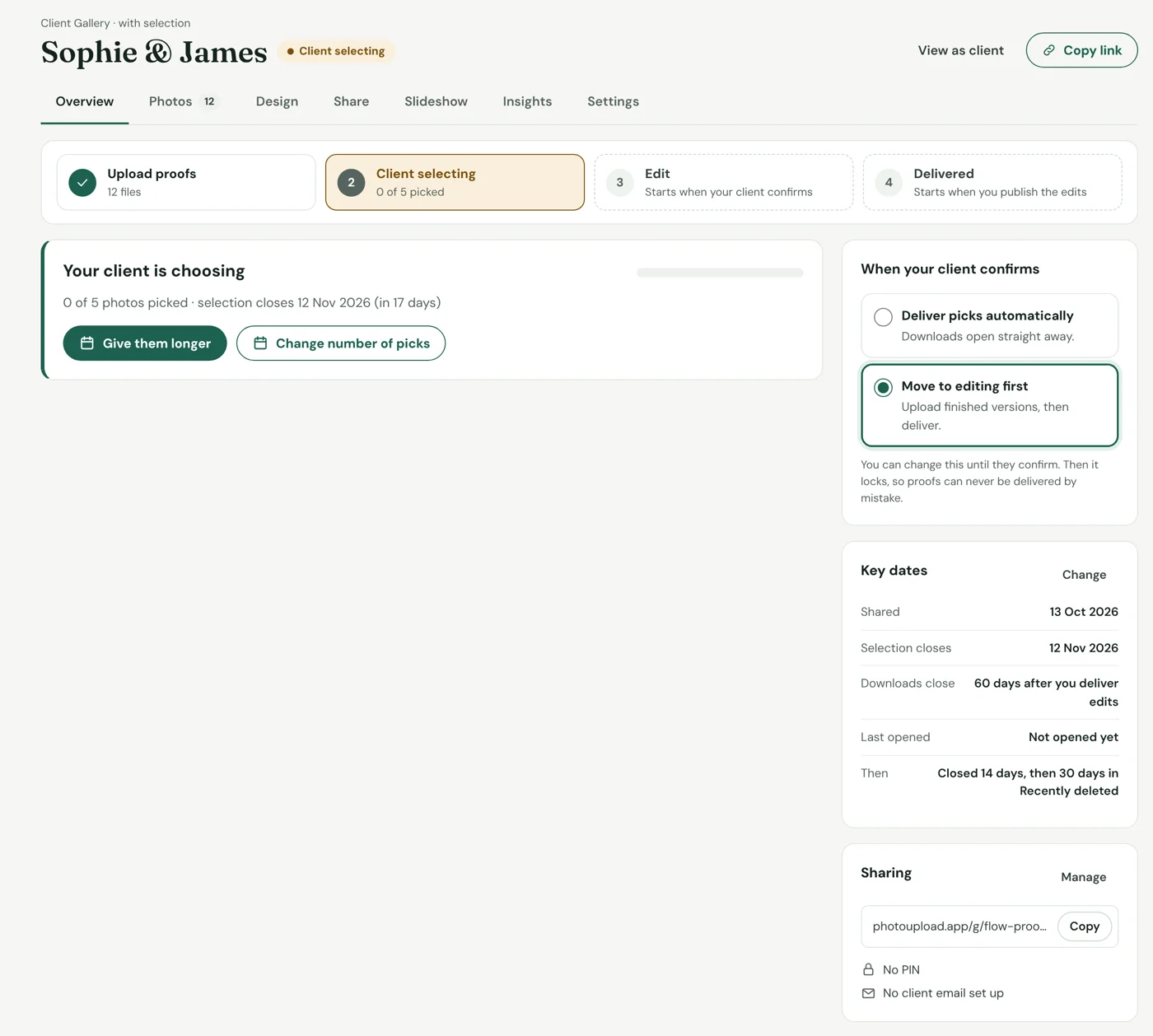
- No account needed. Just the link, on any phone or computer.
- Watermarked previews. Your name runs across every proof, so nothing can be used before it’s delivered.
- A clear counter. They can see how many they’ve picked against the number agreed, and come back later.
- Notes for you. They can add a note to any photo, such as “could you remove the sign behind us?”.
- Videos too. If you add videos, they have their own allowance.
Editing and delivering
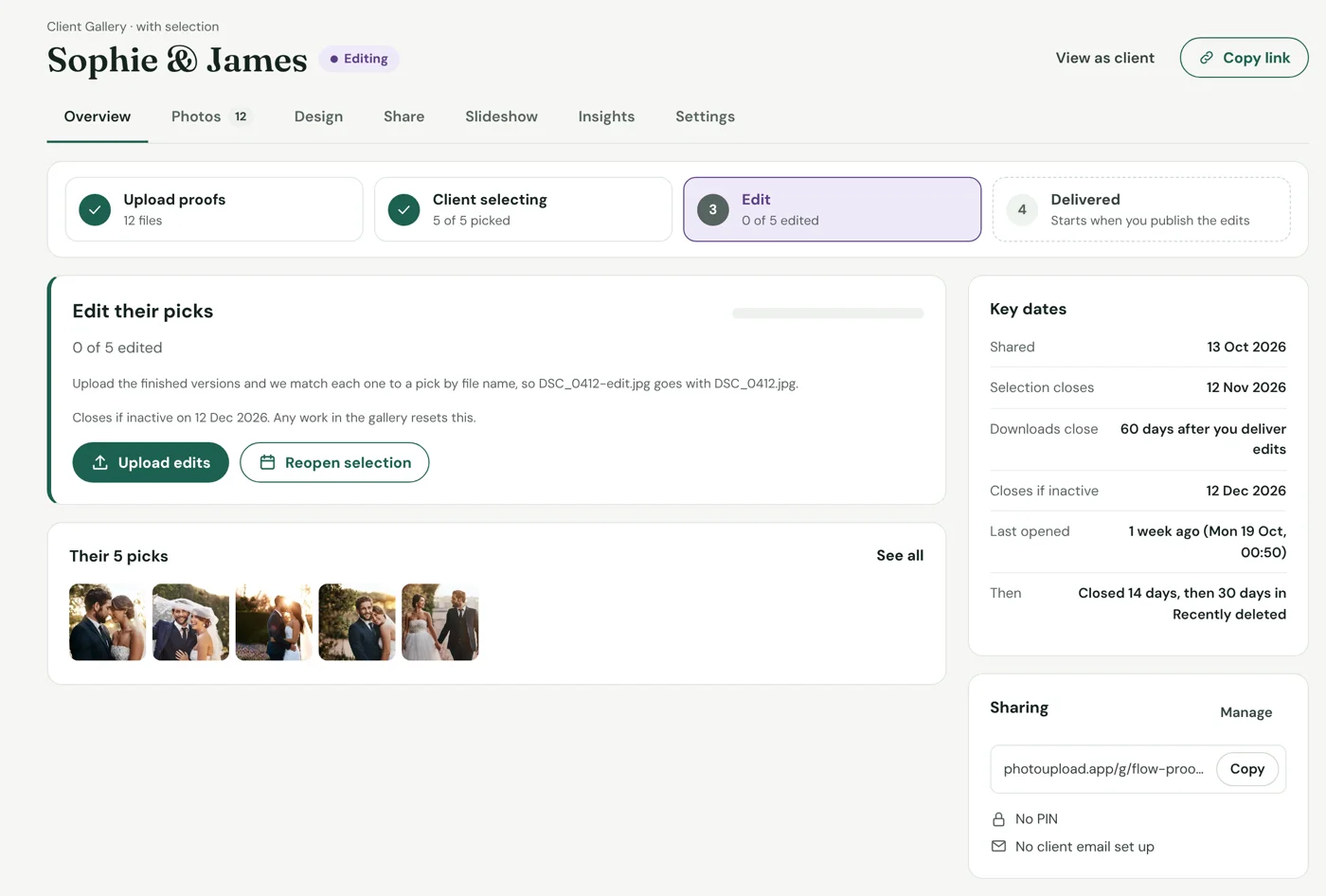
Once your client confirms, Studio shows their picks and notes together, and how many you’ve edited. Upload the finished versions and each one is matched to its pick by file name, so DSC_0412-edit.jpg goes with DSC_0412.jpg. When everything is ready, deliver, and your client is told their photos are ready to download.
Want more favourites? Raise the allowance and reopen choosing with a new date. Their earlier picks stay as they are.
Clearing what you don’t need
Once your client confirms, you can permanently delete the photos they didn’t pick from the gallery’s settings, so they stop using your storage. The gallery itself closes and clears on its dates.