
How guests leave a message
Leave a message on the upload page
Under Choose photos or videos, guests tap Leave a message, write a few words with their name and send it. No photo is needed.
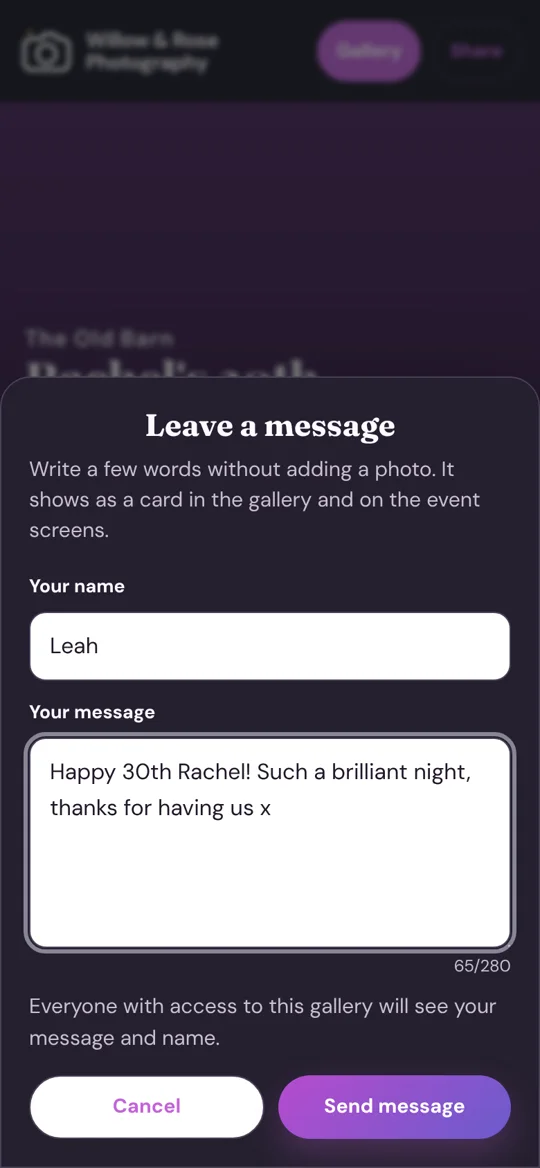
What a guest sees when they leave a message. It shows in the gallery and on the live screen
Each message becomes a card in the gallery’s colours, placed among the photos by when it was written. Tapping it opens it full size, and swiping moves on through the photos and messages together. On the live screen, messages appear as cards between the photos.
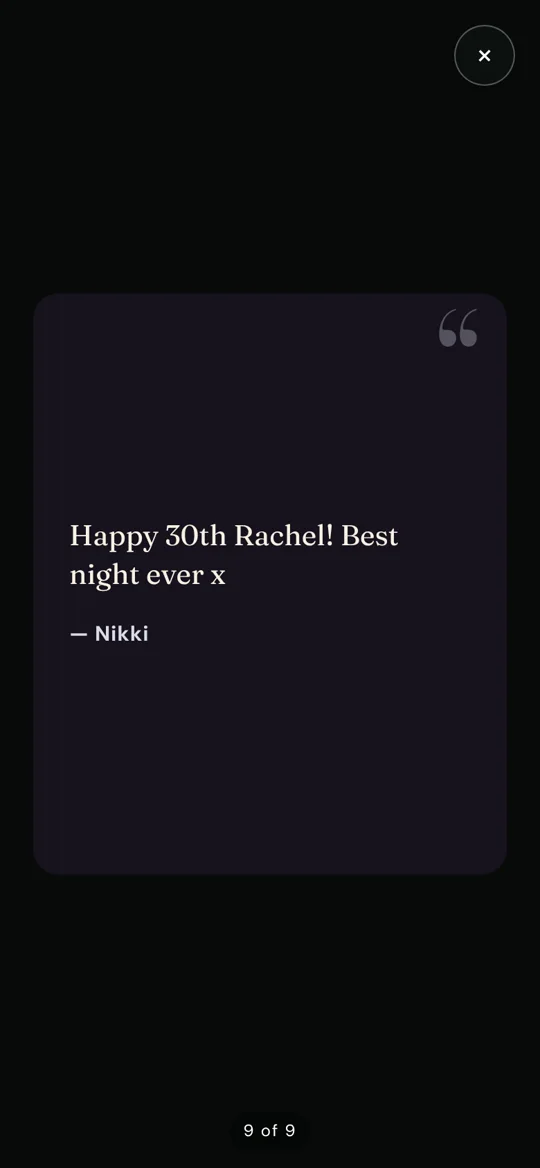
A message in the gallery, opened full size.
Turn messages on or off, and check them
Messages come with every gallery except the free Snapshot plan. In Studio, open the gallery and go to Settings → Guest messages (for a personal gallery: My gallery → Settings). Use the switch to turn them on or off.
Every message is listed there. Hide takes one out of the gallery and off the screens, and Delete removes it for good. With Approve before showing on, new messages wait for you to approve them first, together with guests’ photos in Photos → Waiting for you.
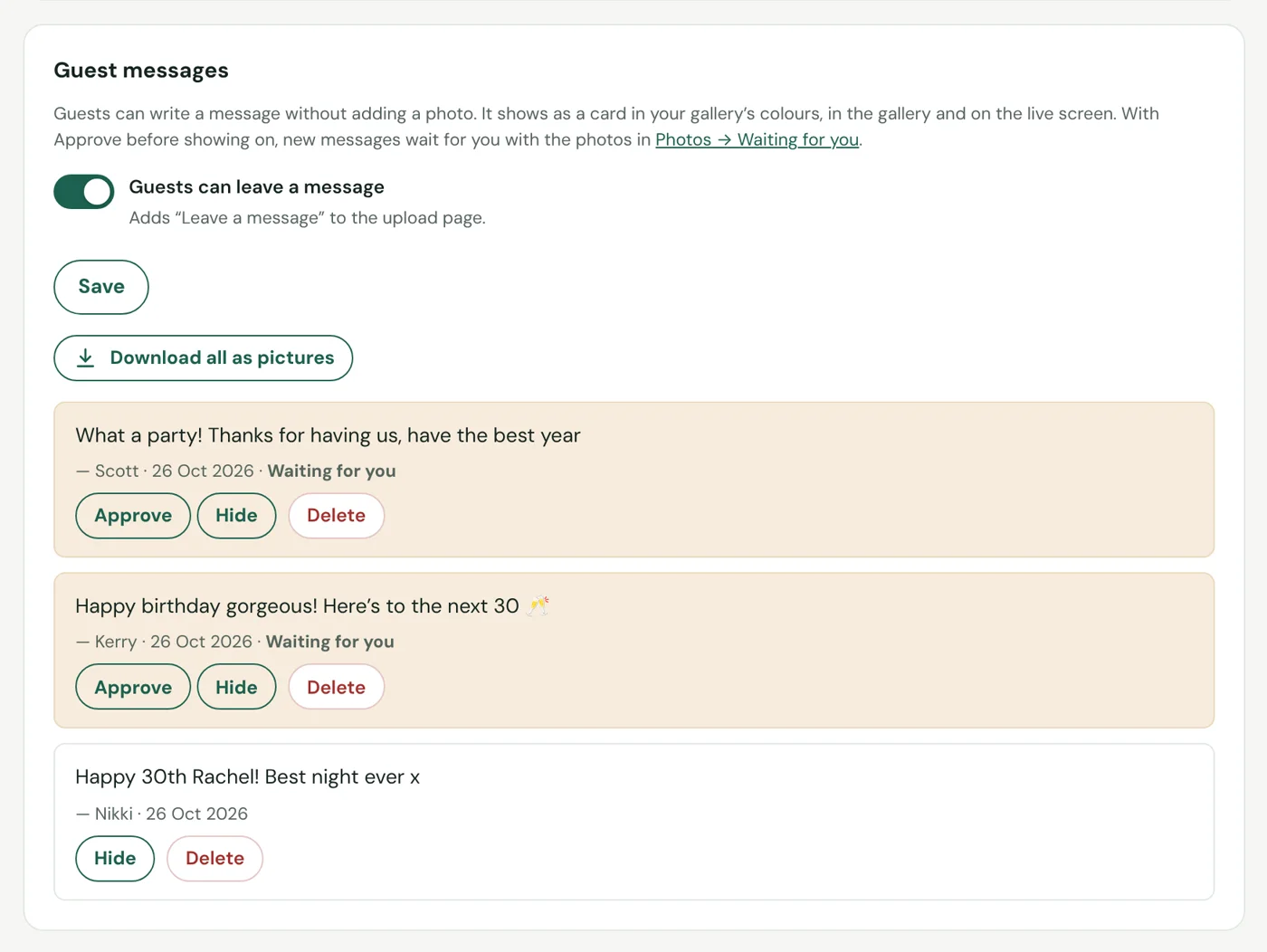
Keep them
- Download all as pictures. In Settings → Guest messages, download every message as a square picture of its card, ready to print or share.
- Guests can download them too. In the gallery, messages can be selected like photos and come in a Messages folder in the download.
- In your cloud backup. If the gallery backs up to Google Drive or OneDrive, every message is saved there as a picture, in a Messages folder.